


A Hytale server must be linked to a Hytale account before it can accept players. On the first start, the GamePanel first asks for your Hytale account to download the server files, then the console gives a code to validate on the Hytale website. You only do this once.
Start the server. A window asks you to sign in with your Hytale account so the server files can be downloaded: sign in and confirm. The download then resumes.
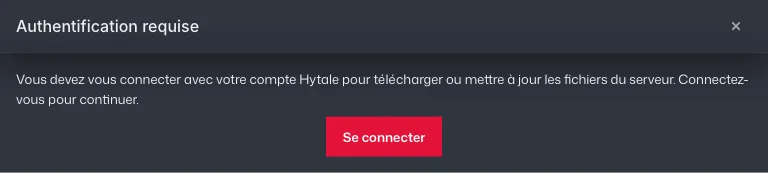
GamePanel window asking for a Hytale account sign-in, on the first start of a Hytale server Once the server has started, type
/auth login devicein the GamePanel console.The console shows a link and a code: open the link, sign in to your Hytale account and enter the code.
The console confirms the connection: the server is ready.