

Install FileZilla Client, then create a site with the SFTP protocol, the host and port shown in the GamePanel (System menu, SFTP Details), your SFTP username and your GamePanel password. Handy for large transfers (worlds, modpacks). Works the same for every game.
Before you start
FileZilla Client, free to download from filezilla-project.org (get "FileZilla Client", not "FileZilla Server", and decline any extra software offered during setup). WinSCP works just as well on Windows, with the same details.
In the GamePanel, open your server, menu GamePanelSystemSFTP Details. The same details are also in Files, SFTP Details button above the file list. In "Connection address", what follows
sftp://is the host (e.g.game05.helloserv.fr), the number after:is the port (e.g.2022). Also note the full "Username", including the part after the dot (e.g.[email protected]). The password is your GamePanel one.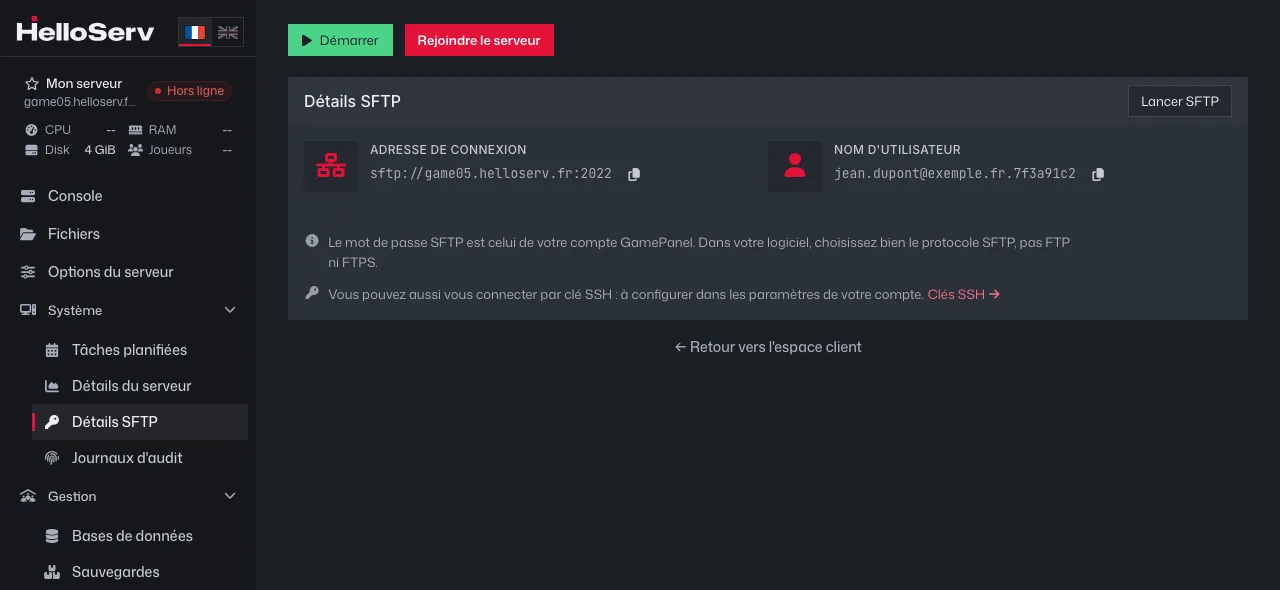
The GamePanel's SFTP Details page, System menu (example credentials) In FileZilla, File menu, "Site Manager", then "New site". On the "General" tab, choose Protocol "SFTP - SSH File Transfer Protocol", fill in "Host" and "Port", keep Logon Type "Normal", then fill in "User" and "Password". Click "Connect".
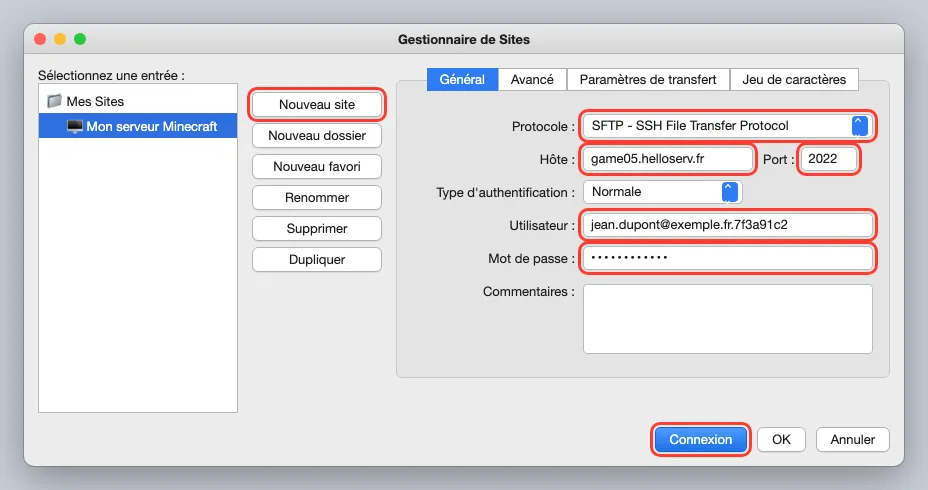
FileZilla's Site Manager filled in (example credentials) On first connection, FileZilla shows "Unknown host key": that's normal. Tick "Always trust this host, add this key to the cache", then "OK".
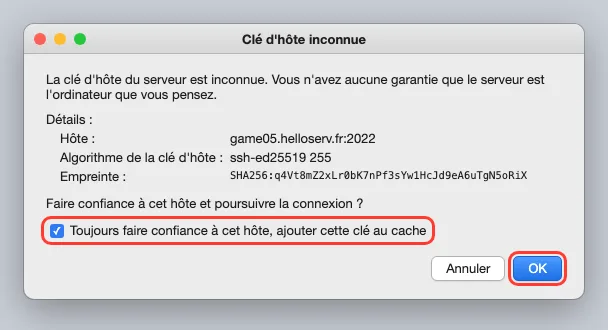
The Unknown host key window Once connected, "Local site" on the left shows your computer, "Remote site" on the right shows your server. Stop the server from the Console before replacing a world, then drag your files or folders from left to right. The transfer shows up at the bottom, in "Queued files". To get a file back, drag it from right to left.
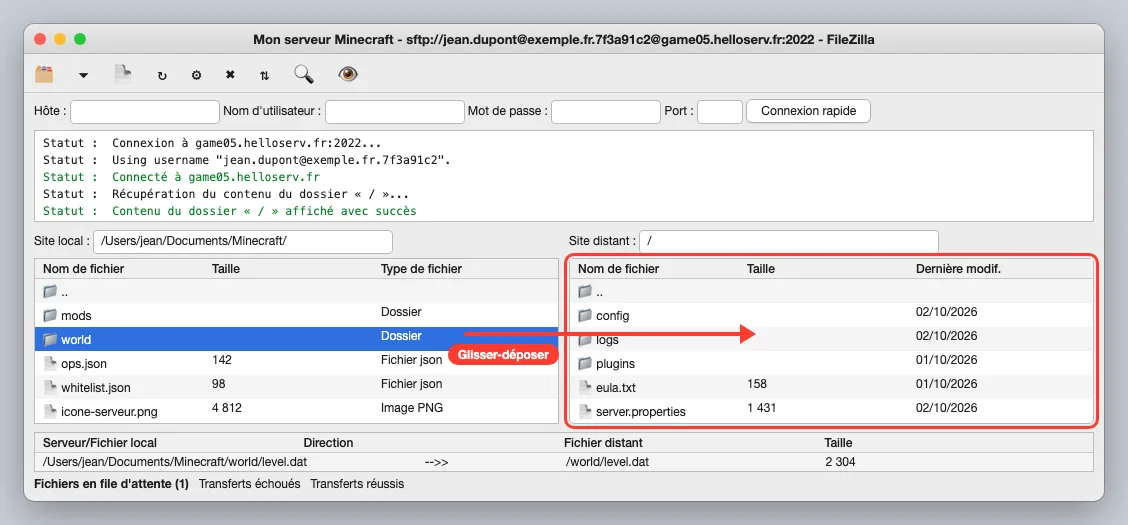
Uploading a folder by drag and drop in FileZilla Restart the server from the Console once the transfer is done.
Common errors
- FTP or FTPS instead of SFTP: the connection fails. Make sure you pick "SFTP - SSH File Transfer Protocol".
- Port 21 or the game's own port (the one in the game's connection address): use the port shown in SFTP Details (usually 2022).
- "Authentication failed": the password is your GamePanel one, not your client area one. Also check that the username is copied in full, including the part after the dot. Forgotten password: see GamePanel Password.
- Timed out or connection refused: check the host (without
sftp://in front) and the port, then try again. If it keeps happening, open a ticket.
For a few files, the GamePanel's File Manager is enough (New button, then Upload).