

A schedule warns your players, saves the world, then restarts the server at the time you pick. The message and save commands depend on the game: each game has its own page, linked at the bottom.
GamePanelSystemSchedulesCreate, pick Blank Schedule, then Continue.
Give it a name, pick the frequency and the time, keep the timezone (Paris, Berlin, Rome), then Create Schedule.
On the schedule page, Create Task adds an action. For each message to the players: Send command, with your game's command, for example
say Server restart in 15 minuteson Minecraft.Then add the save (Send command), and last Send power action, Restart the server.
Each action's Time Offset (seconds) counts from the previous action. For messages at 15, 5 and 1 minute: 0, 600, 240, then 50 for the save and 10 for the restart.
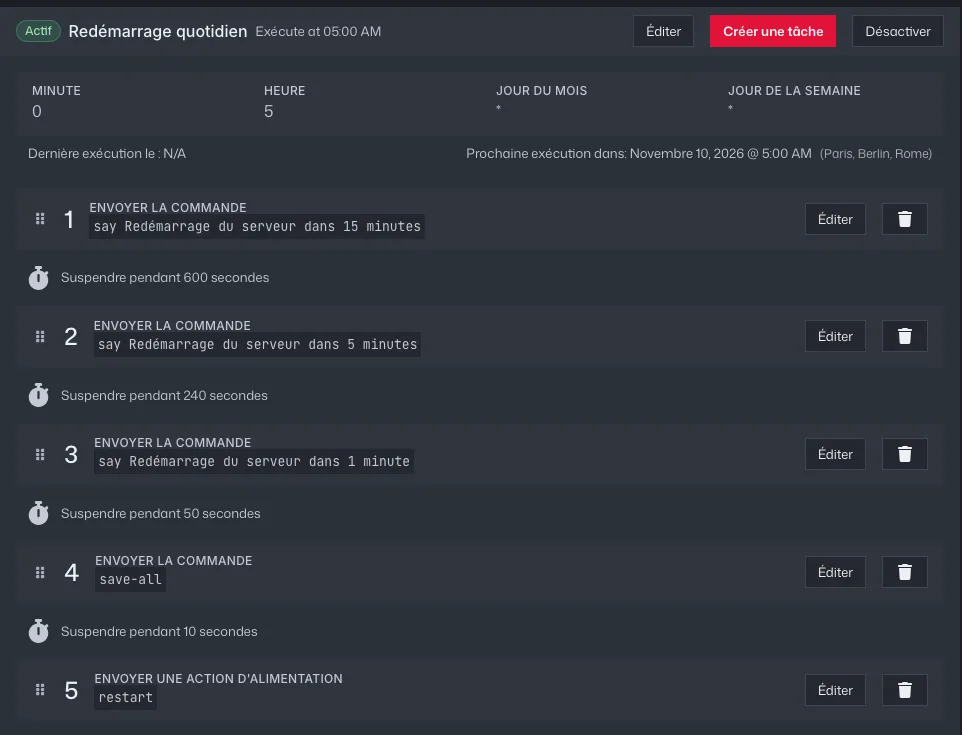
Minecraft server schedule: three messages, the save, then the restart Trigger runs the schedule right away, restart included: try it when nobody is playing. The result shows in Run History and in the console.
Common errors
- The server restarts after the schedule's time: the offsets add up. A schedule at 05:00 with 600 + 240 + 50 + 10 seconds restarts around 05:15.
- Every 4 hours: in Advanced, set the minute to
0and the hour to*/4. - The wizard's Daily restart template sends
say Scheduled restart in 60 seconds: change the message with Edit, or delete that action if your game doesn't show messages.
Your game's commands: Minecraft, Rust, 7 Days to Die, Project Zomboid, Palworld, ARK, DayZ, Valheim, Enshrouded, FiveM, Hytale. For other games, add the restart only.